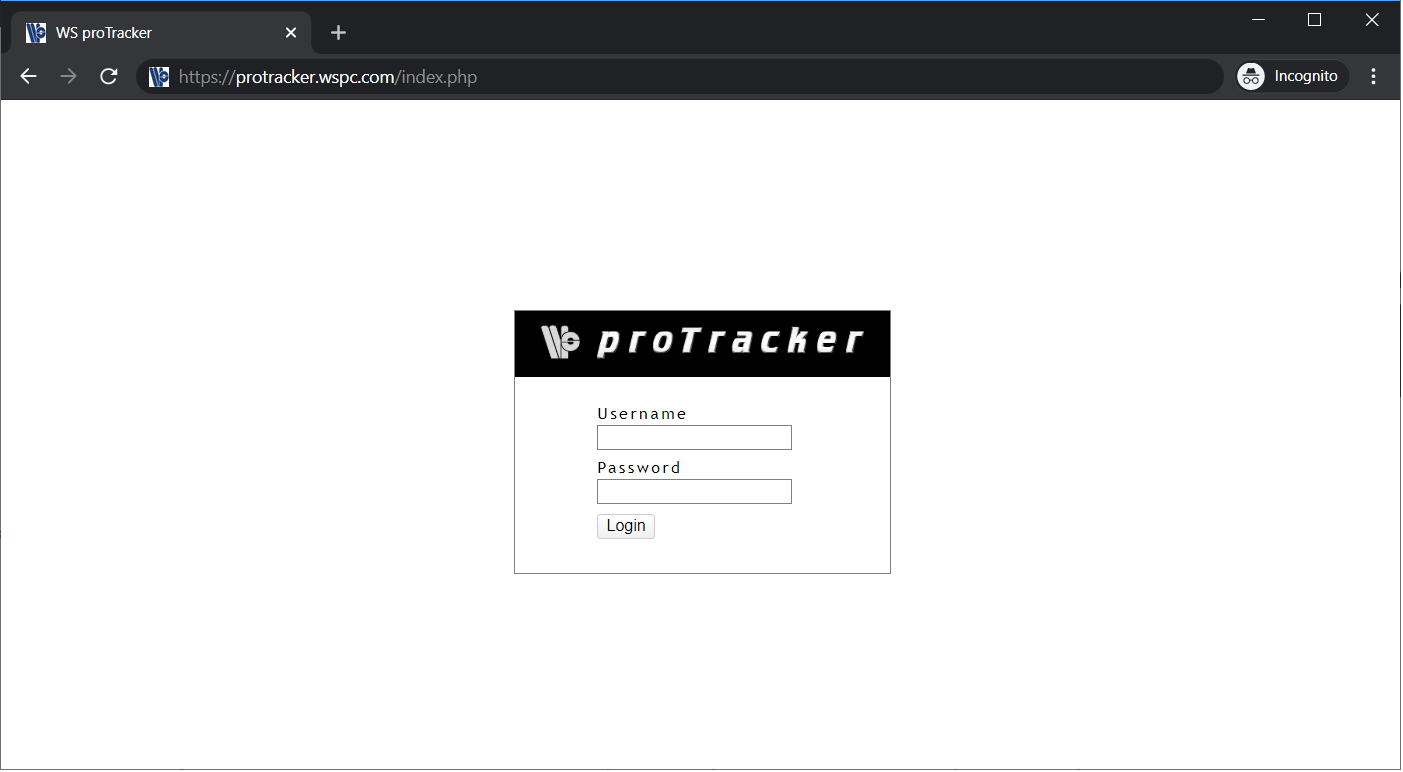
Sign in on Login screen with Username and Password.
Enter your username and password
Click button.
On successfull login, you will be taken to your default home page based on your department and role.
For security reasons please change the password after first login. In the main menu click your name > your name for password change screen.
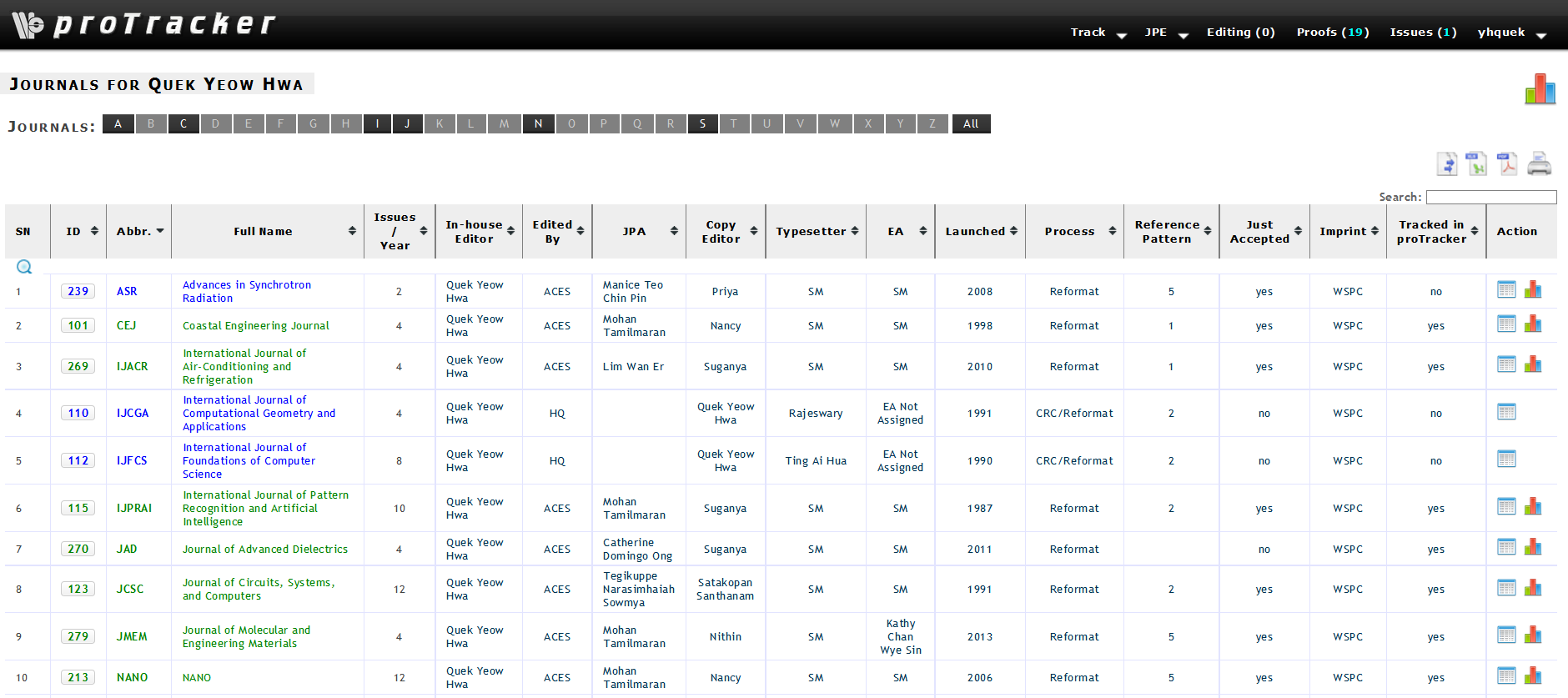
Home screen
Your home screen lists down all your journals as shown here.
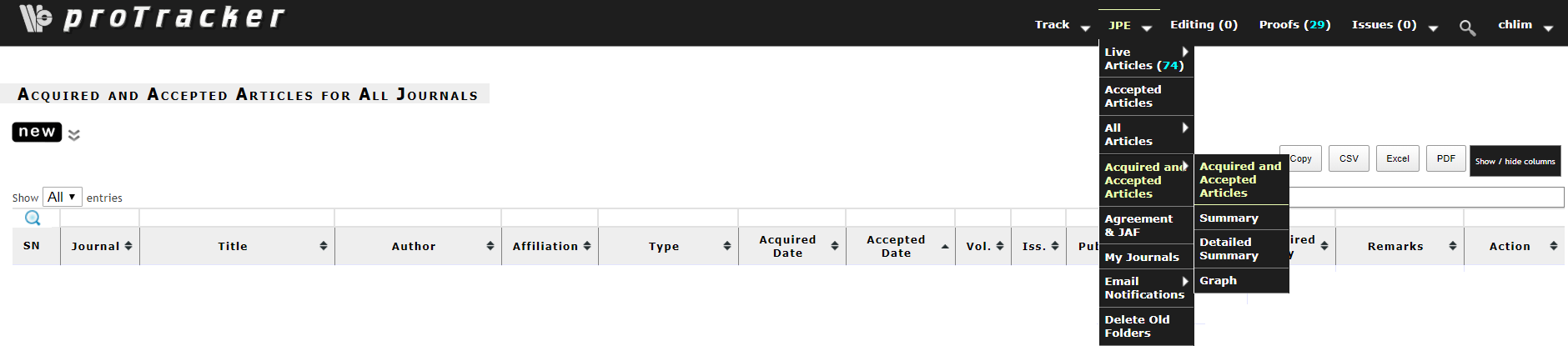
Acquired and Accepted Articles
For Acquired and Accepted Articles screen, in the main menu click Editor > Acquired and Accepted Articles
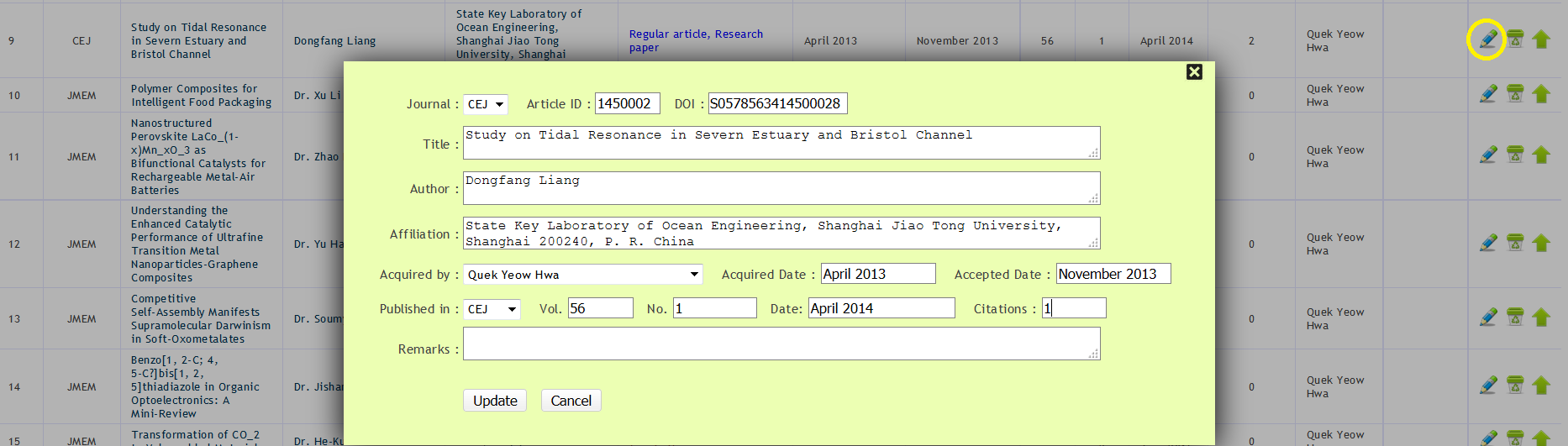
Icons used
Icons
Purpose
Edit details
Delete an entry
Upload supporting document in PDF format
New Entry
Click to record the details of a newly acquired and accepted article.
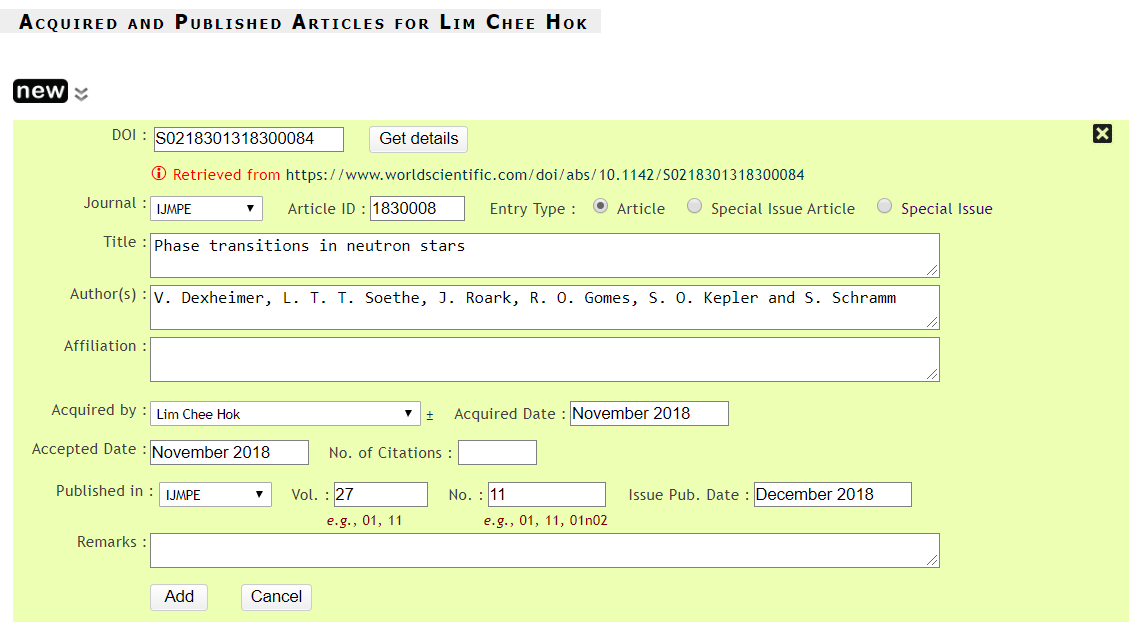
Enter information
If your journal is already in proTracker, enter the jornal name and article ID or PII number and click button. The system should auto populate your other fields. Now verify the details, make changes if necessary and click button.
For non proTracker journals, enter all the fields, verify and click button.




 to record the details of a newly acquired and accepted article.